I have a question in regards to setting up a Raspberry PI to the monitor screen allowing me to place the NVR in a secluded area, well hidden.
Was interested to know what people's feedback is if they have gone down this route? And if there are any instructions on how to do this would be greatly appreciated.
This project describes the steps I followed to use a Raspberry Pi 2 Model B, running Raspbian, to create a display for monitoring IP surveillance camera...
had run it several times for 24/7 monitoring... works like charm for years now... have rpi3/rpi4 with metal case (they heat up fast, so no prob with metal case).
because its rtsp, lan is needed. NO WLAN !! it will not work without issues.
you have to use substream h264... omxplayer can not handle h265 and mainstream (for several cams). you are complete free with the size/columns etc.
there are even modifications to switch between layouts in given time...
This project describes the steps I followed to use a Raspberry Pi 2 Model B, running Raspbian, to create a display for monitoring IP surveillance camera...
had run it several times for 24/7 monitoring... works like charm for years now... have rpi3/rpi4 with metal case (they heat up fast, so no prob with metal case).
because its rtsp, lan is needed. NO WLAN !! it will not work without issues.
you have to use substream h264... omxplayer can not handle h265 and mainstream (for several cams). you are complete free with the size/columns etc.
there are even modifications to switch between layouts in given time...
Thank you for taking the time out to reply and provide useful information.
As someone with very little knowledge of Pi would I be able to set this up with ease? The setup and the ability to move the noisy NVR really appeals to me
I see the raspberry solution as an addon to have a monitor to watch. Its easy to install, for someone who have experience in unix systems it would take only a few minutes to setup , if you no experience it takes maybe a few hours.
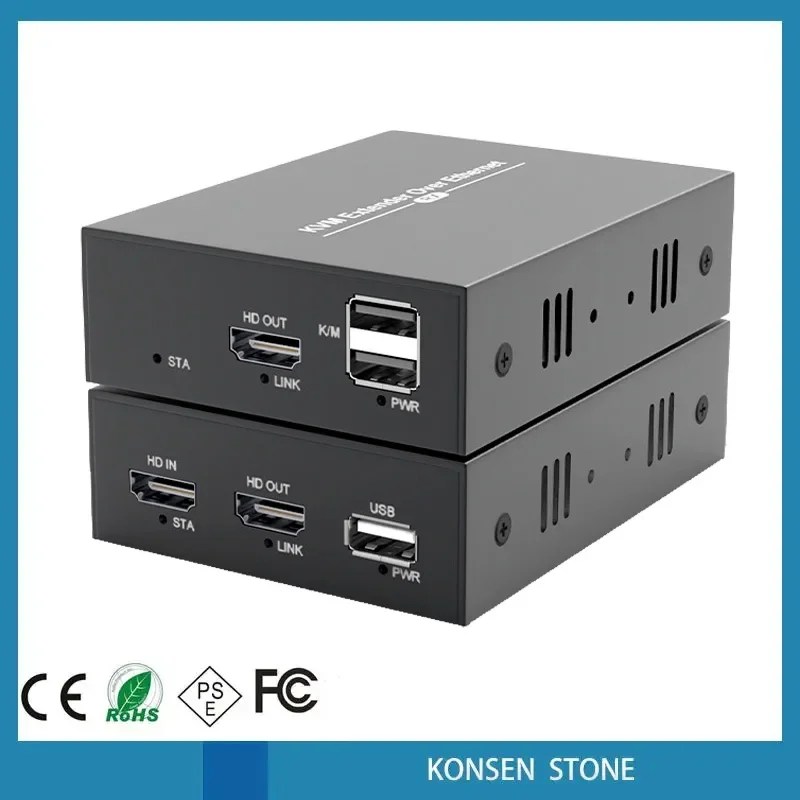
if you just want the nvr away and you are able to run a lan-cable between the nvr and your monitor, there is an easier solution ...
Free delivery and returns on eligible orders. Buy PW-HT225HK HDMI KVM USB Extender 165ft/50m Transmission over Single Cat5e/6/7 HD 1080P Support Loop out 3D EDID Function at Amazon UK.
www.amazon.co.uk
it also transfer the usb-mouse ...
these two adapters have to be connected directly TOGETHER , they can not be connected to your network ... so you have to connect one adapter to the nvr and one to monitor...
if you want an addon monitor for just watching somewhere in your network.. use raspberry, if you want to control the whole nvr like its direct connected to the monitor, use kvm extender. only the transmitter have to be connected to power ... receiver gets power over lan cable ...
sometimes there are offers for it on amazon... they are around 50-60 on discount , ... if you do not need any mouse controlling just HDMI they might be alot cheaper ... rtsp have a delay, using the extender you will have less delay in video stream
I see the raspberry solution as an addon to have a monitor to watch. Its easy to install, for someone who have experience in unix systems it would take only a few minutes to setup , if you no experience it takes maybe a few hours.
if you just want the nvr away and you are able to run a lan-cable between the nvr and your monitor, there is an easier solution ...
Free delivery and returns on eligible orders. Buy PW-HT225HK HDMI KVM USB Extender 165ft/50m Transmission over Single Cat5e/6/7 HD 1080P Support Loop out 3D EDID Function at Amazon UK.
www.amazon.co.uk
it also transfer the usb-mouse ...
these two adapters have to be connected directly TOGETHER , they can not be connected to your network ... so you have to connect one adapter to the nvr and one to monitor...
if you want an addon monitor for just watching somewhere in your network.. use raspberry, if you want to control the whole nvr like its direct connected to the monitor, use kvm extender. only the transmitter have to be connected to power ... receiver gets power over lan cable ...
sometimes there are offers for it on amazon... they are around 50-60 on discount , ... if you do not need any mouse controlling just HDMI they might be alot cheaper ... rtsp have a delay, using the extender you will have less delay in video stream
I did consider the HDMi extenders but again I would need to lift floorboards for the ethernet cable. So I feel Raspberry Pi is the easier option. I'm happy to use it just for viewing as when the NVR is in the loft I can connect it to a USB extender that's connected to my work computer. (if I need to use other facilities).
Is there a particular Raspberry Pi model you recommend - 4gb ram or 8gb ram? I think once I go through the tutorial and few you tube videos I should be able to configure it....eventually.
Apologise the link you provided for the case is that what you recommend to buy?
i am buying always the 4gb version because i may use them for something else in future and have problems due lack of ram
but for rtsp viewer ONLY you can go with 2GB ... should be no problem... omxplayer uses the hardware encoder for h264... even for mediacenter use most buy 2GB
the rpi 3 b+ was only 1GB MAX
with rpi4 you need a metal case... the rpi4 heats alot ... tried it without and cpu was always around 70°C ... with only 40°C. rpi3 was much cooler
there are may better looking cases, but if you want to go full silent its the best case for that price... its just a metal block which transfer the heat in the air...
go for rpi4, its much better hardware
i think you dont need any tutorials ... you just need to put raspbian OS mini on sd card (with balenaEtcher or similiar), swap sd card in, start it up, edit the script, put it on (winscp3 or via commandline copy paste) and start it... its just a few commands .. with rpi4 they made it much easier to install the os, because they have own images now. back then it was a pain in the ass for newbies
p.s. dont buy raspberry itself on amazon , they are overpriced there.
you also need the official power supply , others may not work correct
should be 33,90 (2GB) + 7,50 (power supply) + 5 (sdcard) + 8,99 for case with prime or 12 without ... you can buy everything on pihut
but again:
you see only what you configured. you can not switch the streams or make them bigger with a mouse. its always the same size ...
Hiya. So I have managed to order everything and set it up by flashing raspian ( I think it's called). You were not kidding these things over heat!!!!
I have been following the link that you kindly provided earlier. But when it comes to entering the static IP address. I do enter it at the bottom of the coding, I have managed to save it but when it comes to using putty it's not connecting to the pi when I'm entering the IP address
The official documentation for Raspberry Pi computers and microcontrollers
www.raspberrypi.org
after you are able to connect to the pi
- please check first if you can connect via VLC to the rtsp stream URL ...
if not, dont continue ! first get a working rtsp stream from your nvr/cam in VLC
- have you installed the lite version? (without any desktop gui)
- have you done "sudo apt-get install screen omxplayer" ?
- what is the resolution of the screen ?
- how many cams do you want to have on screen ?
- please first try without any scripts via console with ONE camera
omxplayer -o local rtsp://..... -b --live
AND !
i may be wrong with what i said about these extenders earlier. sorry. there are newer versions of the hdmi extenders which you can add to your existing network (according to description). there are also versions which only need one transmitter and can add many receivers
please check first if you can connect via VLC to the rtsp stream URL ...
if not, dont continue ! first get a working rtsp stream from your nvr/cam in VLC
- have you installed the lite version? (without any desktop gui)
Raspberry Pi is a full download. (I believe)
- have you done "sudo apt-get install screen omxplayer" ?
Yes this has been installed thank you.
- what is the resolution of the screen ?
One camera is 5mp
The other two will be potentially 8mp
- how many cams do you want to have on screen ?
3 eventually.
- please first try without any scripts via console with ONE camera
-----------------------
I have tried using the Rtsp link, as it is within authentication I have added the username and password. Do I get the port number from the IP camera under Configuration >>>>>>Network>>>>>Basic Settings>>>>>multicast>>>>>Video port????
Not sure how to setup OMX player. Any help would be appreciated.
so figure out your username, password and ip... (port is 554 if not changed manual) ... put in url
should be work with the added onvif user when have rights to view stream
in vlc:
click on open -> network stream ... and put your URL in .
if you are able to see the stream from the camera, write here, i help you to set up the raspberry
so figure out your username, password and ip... (port is 554 if not changed manual) ... put in url
should be work with the added onvif user when have rights to view stream
in vlc:
click on open -> network stream ... and put your URL in .
if you are able to see the stream from the camera, write here, i help you to set up the raspberry
Its also possible with VLC on Windows,... omxplayer,vlc,... are all high customizable videoplayers, which you can control via commands or with scripts.
Its called "mosaic" on vlc
I found a way to properly show mosaic of streams from RTSP cameras on VLC 3.0.8 and wanted to share the solution: Write the following into a file <mosaic_vlc3.vlm> # Comment the following lin...
stackoverflow.com
For raspberry:
1) download balencaEtcher (or similiar programm to setup sd card for raspberry)
2) download Raspberry Pi OS Lite from Operating system images – Raspberry Pi
3) use balencaEtcher to put the image onto your sdcard (please make sure that you selected the sdcard and no other drive, you will loose data otherwise)
4) first mount your sdcard into your computer (insert again)... one partition cannot be recognize by windows, because its linux. DO NOT FORMAT IT, just abort the message
5) go to the "boot" labeled partition of sd card and put a plain file (without any ending or text in it) with name "ssh" on boot partition
it will enable ssh by default, so you can just connect
6) hook up raspberry to power and lan. connect to the IP via putty
default username: pi , password: raspberry
7) start with the following commands, just let them run and then the next one... it will update the OS and download omxplayer and screen... each cmd will take a while,... wait for the end. some have to be accepted (see prompt)